Pictula
Let’s get you reading.
From your first import to your favourite reading setup, here’s a quick tour of the essentials.
Bring in your comics.
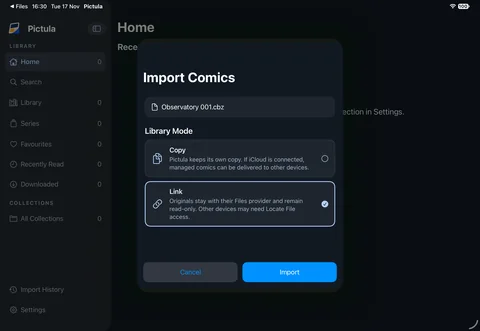
Open Pictula and choose Import Comics. Select comics or a folder containing them. Pictula scans selected folders for supported files.
- Choose the files or folders you want to add.
- Choose Copy to let Pictula keep a managed copy, or Link to keep the original with its file provider.
- Choose Import and review any duplicates or errors that need your attention.
Good to know: Pictula leaves your original import files in place. Linked files remain read-only and may need to be located again on another device.
Find a place for everything.
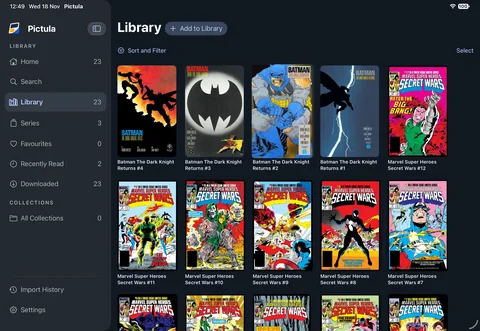
Visit Library to browse your comics, or choose Series to see issues grouped together. Search helps you find a particular story, and favourites keep the ones you love close at hand.
Use Collections to make your own groupings. Smart collections can gather issues using the rules you choose. Open a comic’s details to review or edit its information.
Settle in and read.
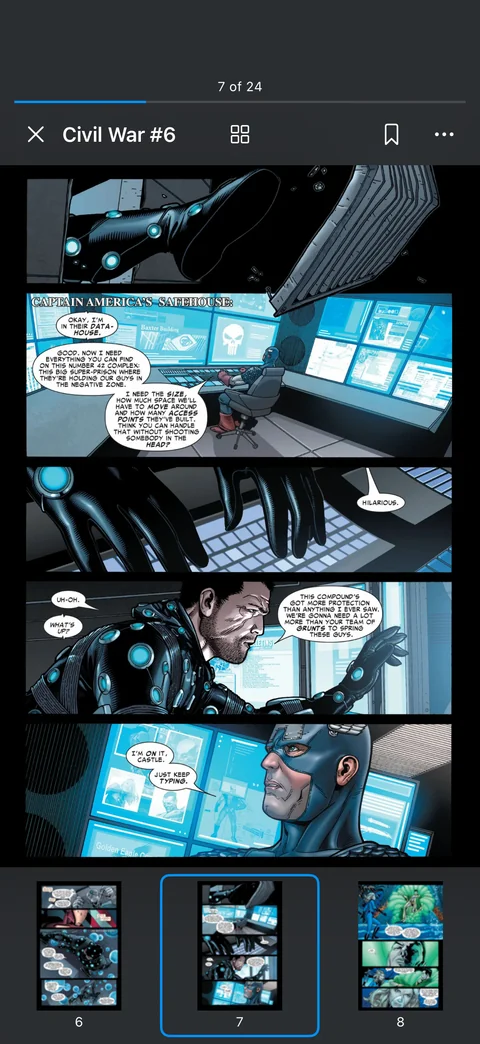
Open a comic from your library to begin. On iPhone and iPad, tap the page to show or hide the reader controls. On Mac, use the reader controls or double-click the page.
Choose a single page, a spread or continuous reading in the reader settings. Change the reading direction, zoom in, browse page thumbnails and add bookmarks as you go. Pictula remembers your reading position.
Make yourself at home.
Open Settings to choose Light, Dark or System appearance and adjust your reading defaults. The reader canvas has its own settings, independent of the library appearance.
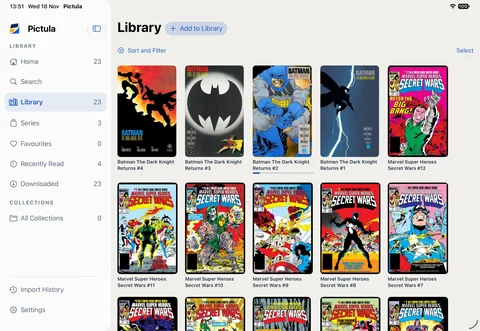
Choose how your library lives.
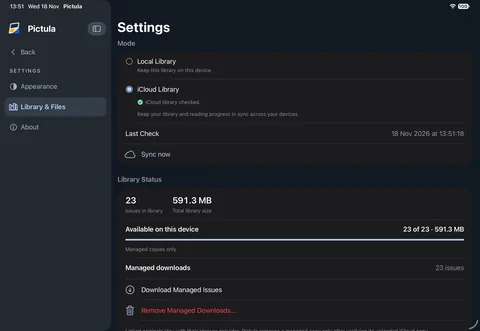
Pictula works as a local library without an account. To use iCloud, sign in to the same iCloud account on your devices and choose iCloud Library in Settings → Library & Files.
What syncs
- Library details: comics in your library, their titles, series, issue numbers, creators, tags and other metadata, plus a small cover thumbnail.
- Your reading: reading position, bookmarks, favourites and each comic’s saved layout and reading direction.
- Collections: manual collection membership and smart collection rules, along with changes and deletions.
- Import History: import reports, including their results and associated details.
How comic files get there
Copied comics: Pictula can upload its managed copies to iCloud and download them on another device when needed. Library details and cover thumbnails can arrive before the full comic file. Check Library & Files for each device’s availability and transfer status.
Linked comics: Pictula syncs the library details and reference path, but does not upload or remove the original file. The other device must be able to reach that location; use Locate File if it needs its own access. Your storage provider controls the original’s availability.
What stays on each device
File access permissions and local download or cache state stay on the device. General appearance and reader defaults are also set on each device; per-comic reading choices can sync with the comic.
Sync and file transfers happen separately and may take time. Pictula remains usable locally when iCloud or a network connection is unavailable; changes can sync when the connection returns.