Pictula
A closer look

Made for every kind of reader.

From bringing in your first issue to picking up a favourite series again, the details are designed around the way you enjoy comics.

Bring your own comics

Already have a collection? Pictula opens these formats:

  • CBZ
  • CBR
  • CB7
  • CBT
  • PDF
01 / Import

Your comics, your choice.

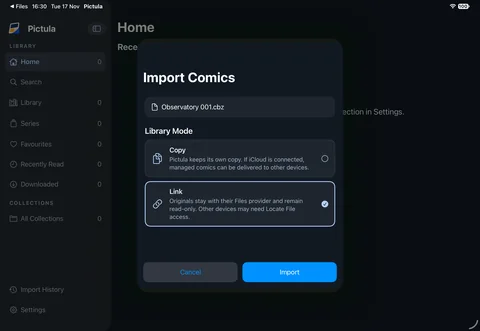
Add individual comics or select a folder to find supported files inside it. Pictula reads available metadata and extracts covers as it builds your library.

  • Copy comics into Pictula or link to originals in place.
  • Import CBZ, CBR, CB7, CBT and PDF files.
  • Review duplicates before deciding what to do.
Learn about importing ↗
Import Comics showing Copy and Link choices
Choose how your comics are stored.
02 / Organise

A library that grows with you.

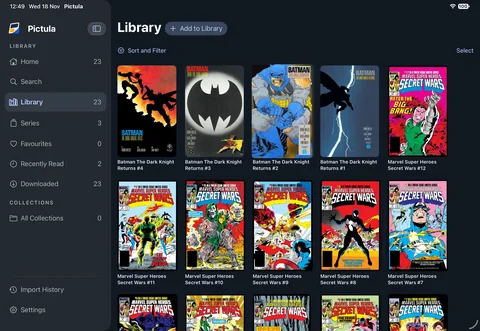
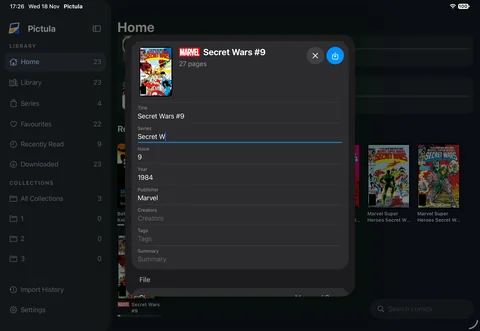
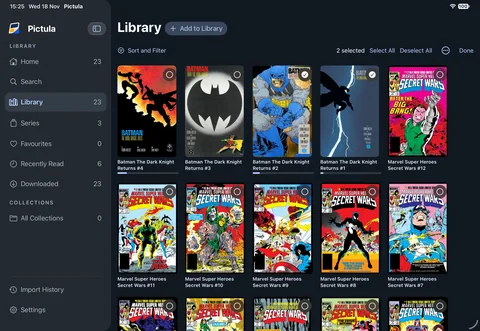
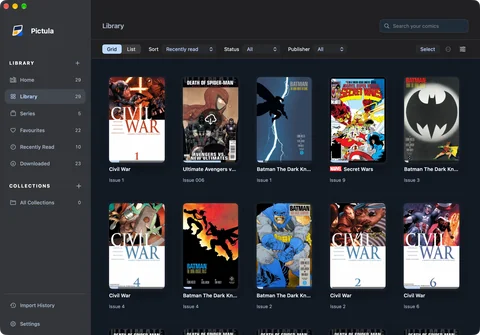
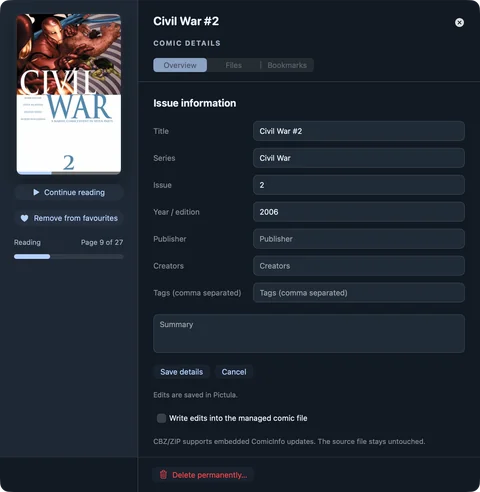
Explore your collection by series, search for a specific issue, or keep favourites close. Open a comic’s details to review and edit its information.

  • Group issues into your own collections.
  • Use smart collections to gather comics by rules you choose.
  • Browse your recently read and downloaded issues.
Explore your library ↗
Pictula library with a grid of comic covers and navigation sidebar
Your collection, ready to explore.
04 / Read

Every page, your way.

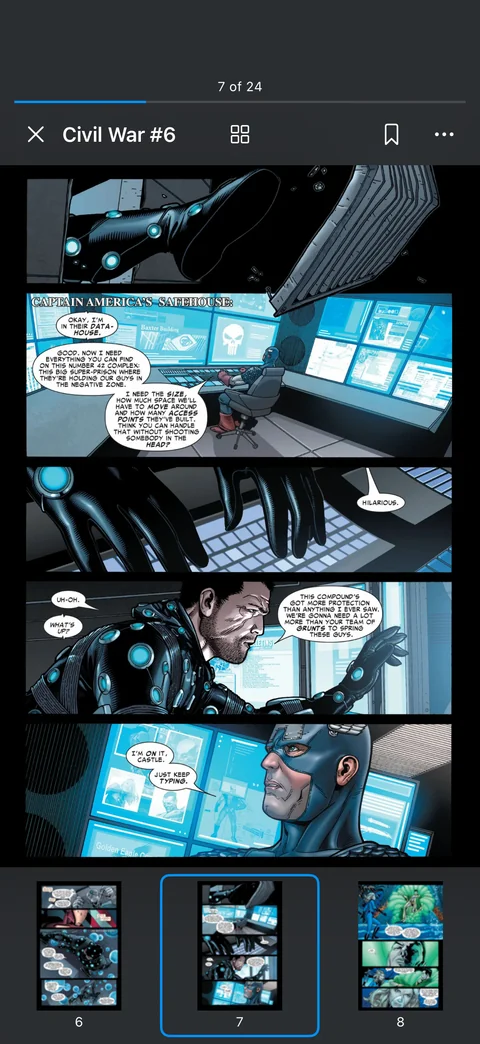
Give the artwork room to shine. Change the layout and reading direction, zoom in on details, and bring up the controls when you need them.

  • Read one page at a time, in spreads, or continuously.
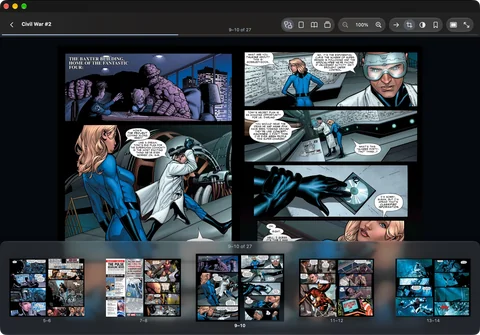
  • Jump between pages with the thumbnail filmstrip.
  • Save bookmarks and return to your reading position.
Get to know the reader ↗
Reader showing a comic page and page thumbnails
Find your place with the page filmstrip.
05 / iCloud

Your library, across devices.

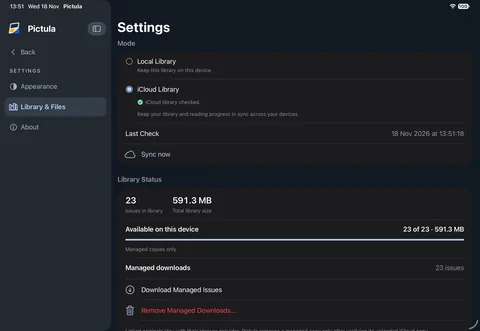
Keep a local library, or choose iCloud Library to sync your collection and reading state with your other devices signed in to the same iCloud account.

  • Sync library details, collections, favourites and reading progress.
  • Managed copies can be downloaded on another device.
  • Linked originals stay with their file provider and may need access on each device.
See what syncs ↗
Library settings showing iCloud Library and library status
Check your library and file availability.
Made for your reading rhythm

A little more room for the story.

Choose a layout for the comic in your hands, and change the reading direction to suit the story.

Single page

Focus on one page at a time.

Two-page spread

See facing pages together.

Continuous

Keep reading as you scroll.

Your files, your choice

Bring the collection you already love.

Import individual comics or a folder. Choose how Pictula keeps track of the files.

01

Copy into Pictula

Pictula keeps a managed copy. With iCloud Library enabled, managed copies can be made available to your other devices.

02

Link in place

Keep the original with its file provider. Pictula links to it without uploading the original; another device may need its own access.

Your original import files stay in place with either choice.

Pictula for Mac

A closer look at your collection.

Browse covers, organise your library and settle into a story on your Mac. For collectors who love the details, Pictula also offers catalogue matching.

Pictula for Mac showing a library of comic covers with search and filters
01 / Organise

Your library at a glance.

Browse covers, search and filter your collection, and keep your favourite stories close.

Pictula for Mac showing a comic in a two-page spread with reading controls and page thumbnails
02 / Read

A bigger canvas for every page.

Read a spread and move through the issue with the page filmstrip.

Pictula for Mac showing editable comic details including title, series, issue, year, publisher and creators
03 / Edit

Make the details your own.

Review and edit the information in your library, from issue details to creators and tags.

Grand Comics Database

Connect your account to search by series and issue, then preview a match before applying it. Existing values are protected unless you choose to replace them.

Metron

Connect with a personal API token to find and review matching details. You decide which changes to apply.

Catalogue matching is available on Mac. Matching saves to your library; writing metadata into a supported managed comic file is a separate choice.

One library, more ways to read

Your comics feel at home on every screen.

Pictula is designed for iPad, iPhone and Mac, so you can enjoy your collection wherever you like to read.

iPad

Settle in with your collection and give every page room to shine.

iPhone

Keep a story close and pick up where you left off on the go.

Mac

Browse, organise and enjoy your library on a bigger screen.

Optional iCloud Library

Pick up where you left off.

With iCloud Library enabled, your collection and reading progress can follow you between devices signed in to the same account.

See what syncs ↗
iPadiPhoneMac
Good to know

Questions before you begin?

Do I need an account?

No. Pictula can keep your library locally without an account. iCloud Library and optional catalogue connections need their respective accounts.

What happens to my original files?

Original import files stay in place. You can copy comics into Pictula or link to originals; linked files remain with their file provider.

Can I read without a connection?

Yes, when the comic file is available on your device. A linked file managed by another provider needs to be available locally through that provider.

What syncs with iCloud Library?

Library details, collections, favourites, reading progress and other reading information can sync. Managed comic copies can be downloaded on other devices; linked originals are not uploaded by Pictula. See the full explanation.

Screens show development builds of Pictula; the finished app may look different.